Getting Access to the ATTOM MCP Server
Last updated: January 16, 2026
This guide will help you get started by showing you how to access the ATTOM MCP Server.
1. Contact ATTOM Sales
To get started with the MCP Server:
Visit the ATTOM MCP Server product page.
Click “Talk to Sales” or the scheduling link shown on the page.
Provide your organization details and expected MCP usage volume.
A member of the ATTOM team will follow up to walk you through plans, pricing, and technical requirements.
2. Choose a Plan or Request a Trial
ATTOM offers several MCP tiers based on monthly request volume.
Depending on your evaluation needs, you may also request a 30 day trial, which typically includes:
Up to 1,000 MCP requests
Limited-time access
Full functionality
3. Complete Licensing
Once you select a plan, ATTOM will provide a licensing agreement or contract addendum.
After the agreement is signed, provisioning will begin.
4. Provisioning
ATTOM will:
Set up your MCP tenant
Apply your contracted monthly request quota
Generate your dedicated MCP API key
When provisioning is complete, you'll receive an email confirming your access.
5. Retrieve Your API Key
Once notified:
Sign in to the ATTOM Developer Portal.
Navigate to Account > Applications.
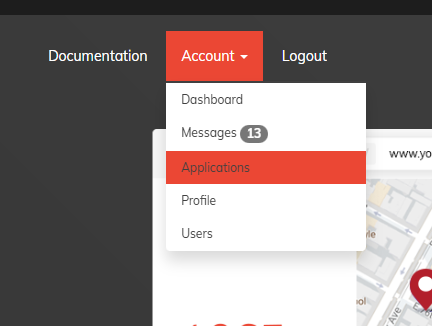
Locate the key labeled MCP.
Copy your API key and store it securely.
You will use this key to authenticate with the MCP Server in all integrations.