Quickstart: Using the ATTOM MCP Server in Make.com
Last updated: December 30, 2025
This guide walks you through connecting the ATTOM MCP (Model Context Protocol) Server to Make.com using Make’s beta MCP client, allowing you to invoke ATTOM-powered tools and workflows without building raw HTTP requests.
Prerequisites
Before getting started, make sure you have:
An active Make.com account
Access to the ATTOM MCP Server
A valid Bearer Token provided by ATTOM after contract execution
Step 1: Create a New Scenario
Log in to Make.com
Click Create a new scenario
Step 2: Add the MCP Client Module
In the app selector, search for
MCP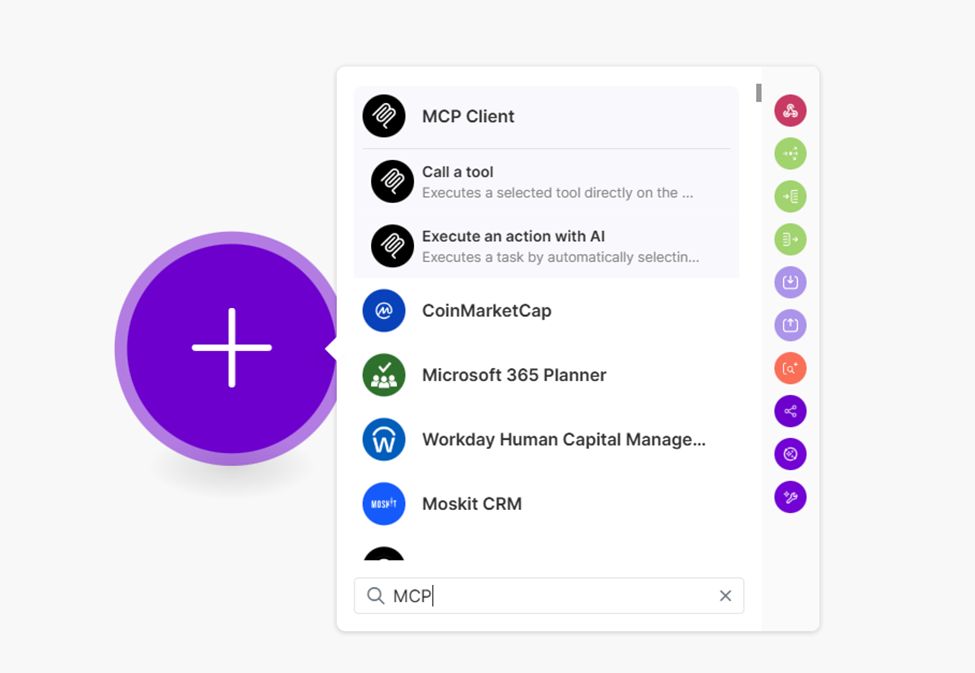
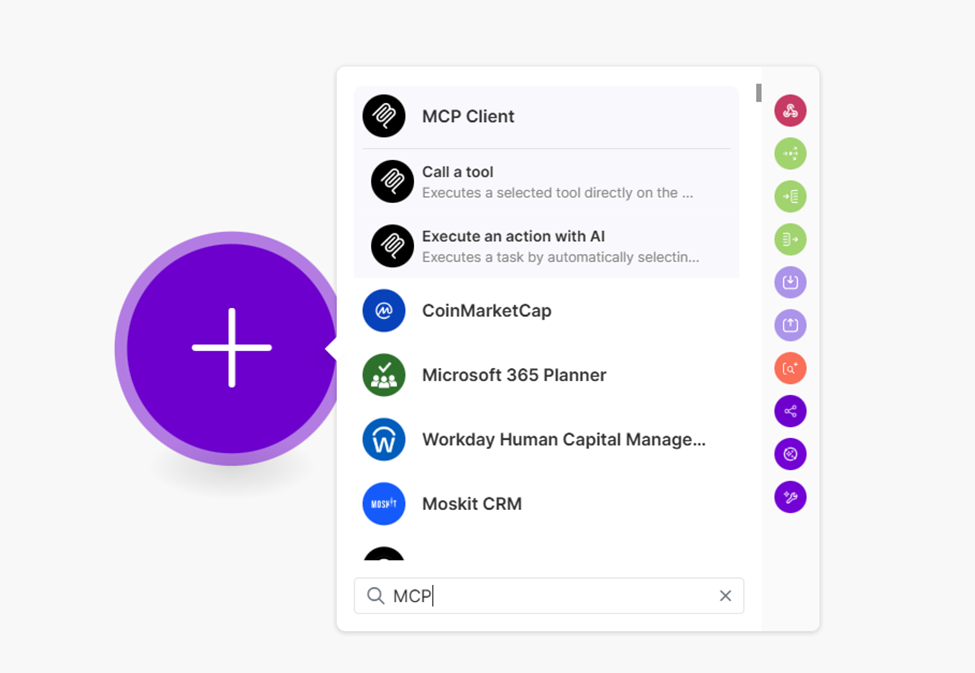
Select MCP Client
Choose Call a tool
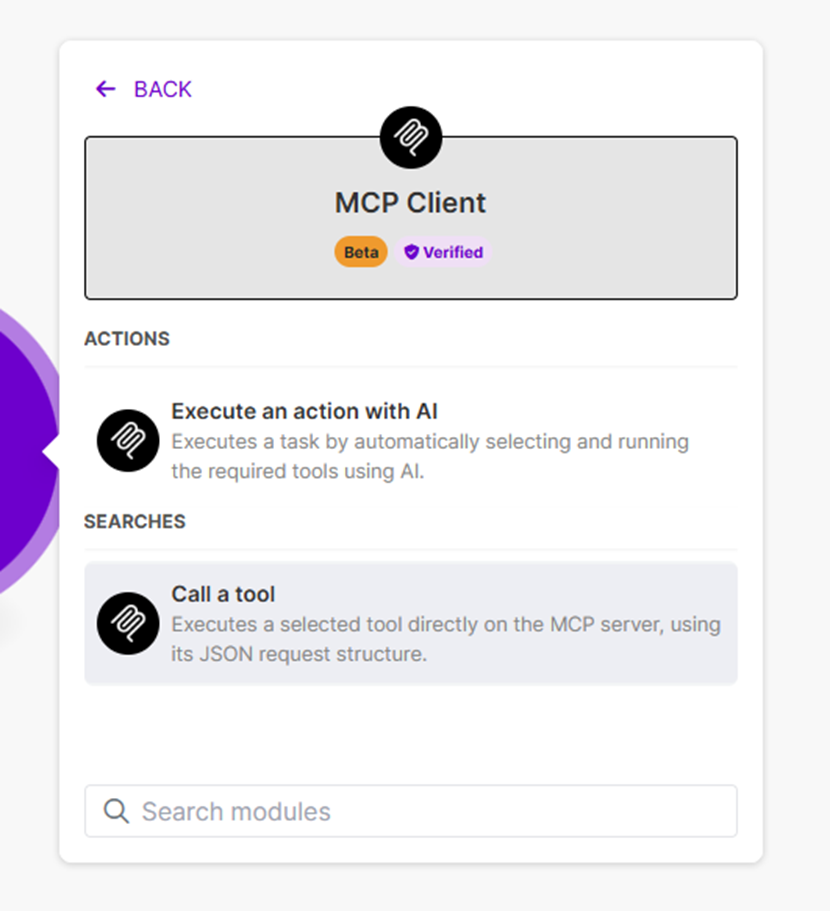
⚠ You must select Call a tool before Make will prompt you to create or select an MCP connection.
Step 3: Create an MCP Connection
When prompted to add a connection:
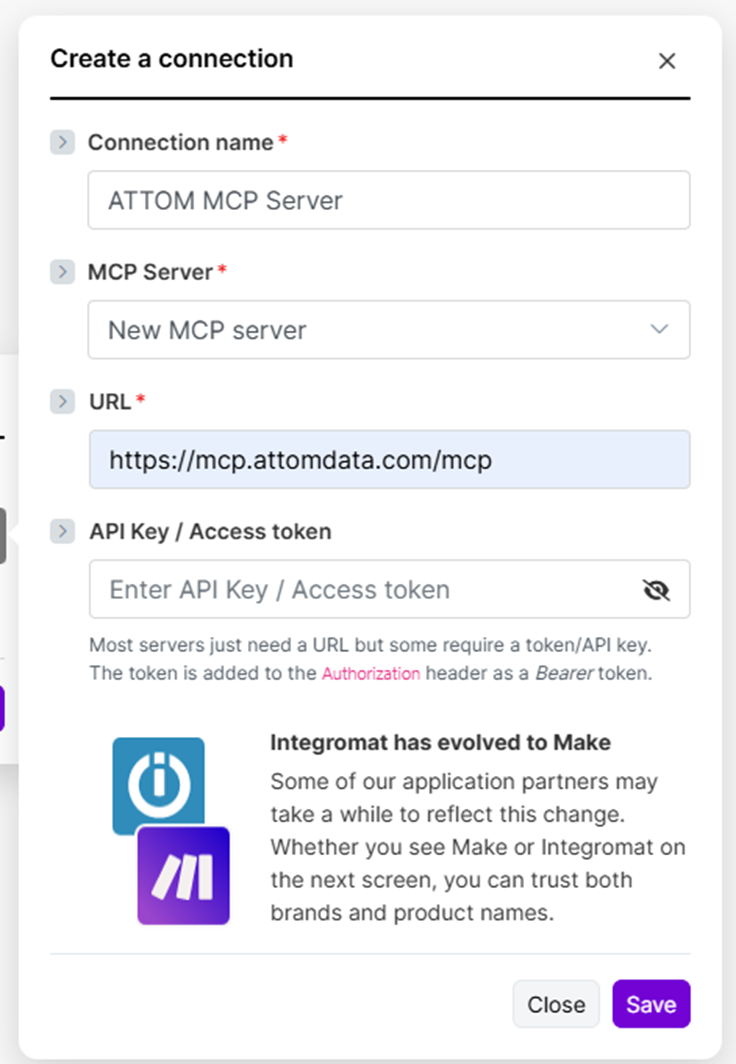
Click Create a connection
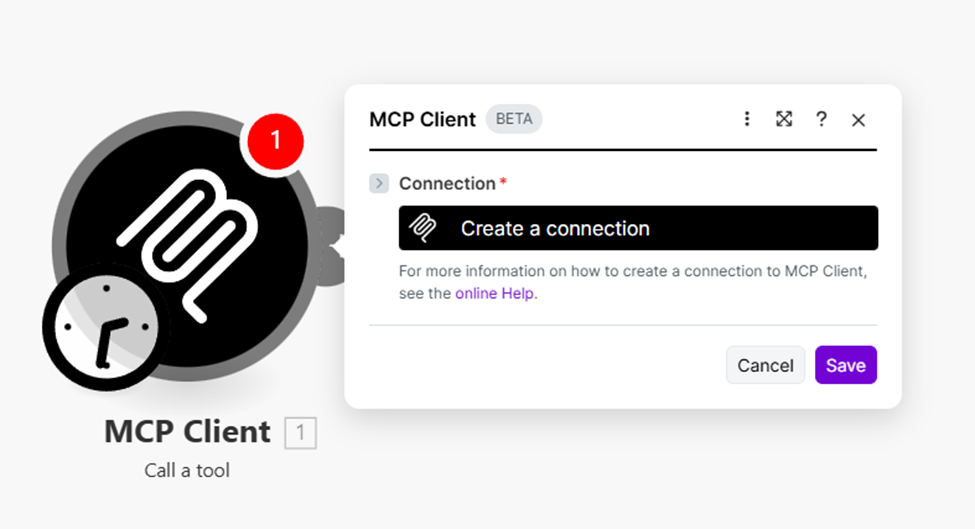
Configure the connection with the following details:
MCP Connection Settings
Server URL
https://mcp.attomdata.com/mcp
Step 4: Select an MCP Tool
Once connected, Make will retrieve the list of tools exposed by the ATTOM MCP Server.
Select the appropriate tool (for example, a property lookup or summary tool)
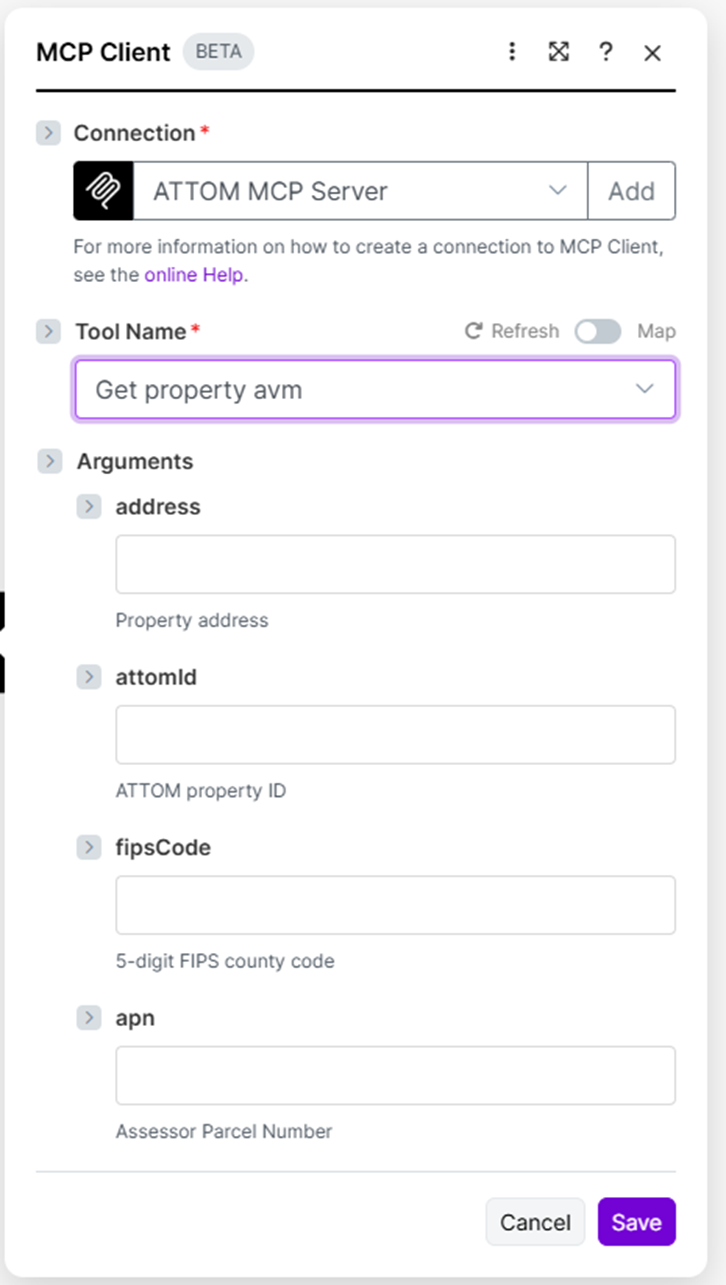
Fill in the required inputs for the tool
Example Input
Address: 123 Main St, Los Angeles, CA
The MCP Server determines:
Which ATTOM APIs to call
What parameters are required
How the response is normalized and structured
Step 5: Run and Test the Scenario
Click Run once
Inspect the output of the MCP Client module
You should receive a structured response containing property data and insights returned by the MCP Server.
Step 6: Use the MCP Response in Your Workflow
You can now map MCP outputs into downstream Make modules, such as:
Google Sheets or Airtable
Slack or email notifications
CRM record enrichment
Additional AI or decisioning steps
Make exposes MCP responses as structured fields, making them easy to reference in later modules.
Common Use Cases
AI-powered property summaries
Lead enrichment workflows
Internal research or analyst tools
Automated property insights
Customer-facing AI assistants
Authentication & Access Notes
Make’s MCP Client uses Bearer token authentication
IP whitelisting is not required
Troubleshooting Tips
MCP app not visible
Ensure MCP Client (beta) is enabled for your Make account
No tools available
Confirm your MCP Server is running and exposing tools
Authorization errors
Verify the MCP key is valid and active
Next Steps
Experiment with different MCP tools exposed by your server
Chain MCP calls with routers and filters
Integrate MCP-powered insights into existing Make automations
For additional MCP examples and advanced patterns, refer to other articles in this knowledgebase or contact ATTOM support.