Quickstart: Using the ATTOM MCP Server in Zapier
Last updated: December 29, 2025
This guide will walk you through setting up a Zap to use the ATTOM MCP Server in Zapier.
Prerequisites
Before you begin, make sure you have:
An active Zapier account
Access to the ATTOM MCP Server
A valid Bearer Token provided by ATTOM after contract execution
1. Add the ATTOM MCP Server as an App Connection in Zapier
Log in to your Zapier account.
Navigate to App Connections.
Click + Add Connection.
Search for MCP and select MCP Client by Zapier.
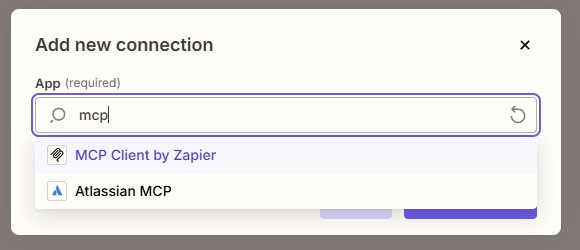
Click Add Connection.
Configure MCP Server Credentials
In the connection setup dialog, enter the following values:
Server URL:
https://mcp.attomdata.com/mcpTransport: Streamable HTTP
OAuth: No
Bearer Token:
Paste the bearer token provided by ATTOM
Click Yes, Continue to MCP Client by Zapier.
Test the Connection
Locate the newly created MCP connection.
Click the three-dot menu next to it.
Select Test Connection to verify that the MCP Server is reachable and properly authenticated.
Once the test succeeds, the ATTOM MCP Server is ready for use in Zapier workflows.
2. Create a New Zap
Click + Create in Zapier.
Select Zap.
(Optional) Name your Zap something descriptive, such as:
MCP Property Report
ATTOM Property Lookup
3. Configure a Trigger
Choose a trigger app based on your business workflow.
Common examples include:
Schedule by Zapier (run on a recurring schedule)
Google Sheets (trigger when a new row is added)
Webhooks by Zapier (trigger from an external system)
Configure the trigger as required and test it to confirm sample data is available.
4. Add an MCP Server Action
Click + Add Action.
Search for and select MCP Client by Zapier.
Choose the appropriate MCP action or request type.
Example MCP Request
Provide the endpoint name and parameters required by the ATTOM MCP Server. Example:
{"endpoint": "get_property_report","parameters": {
    "address": "123 Main Street, Los Angeles, CA"}}
Input values such as the property address can be static or dynamically mapped from your trigger step.
Test the action to confirm the MCP Server returns property data successfully.
Other commonly used endpoints include:
get_property_avmget_property_comparables
5. Add Downstream Actions (Optional)
The MCP response can be sent to other Zapier apps, such as:
Google Sheets – Store property data
Email by Zapier – Send property reports
Slack – Notify teams with property insights
Map the MCP output fields as needed.
6. Turn On the Zap
Once all steps are configured and tested:
Click Turn on Zap.
The workflow will now run automatically based on the configured trigger.
Notes & Best Practices
Ensure your bearer token is kept secure and not shared publicly.
Use dynamic fields from your trigger to scale property lookups.
Test Zaps with sample data before enabling them in production.