Quickstart: Using the ATTOM MCP Server in n8n
Last updated: December 10, 2025
1. Create a New Workflow
Log into your n8n account.
Click Create Workflow.

Add a Manual Trigger node.
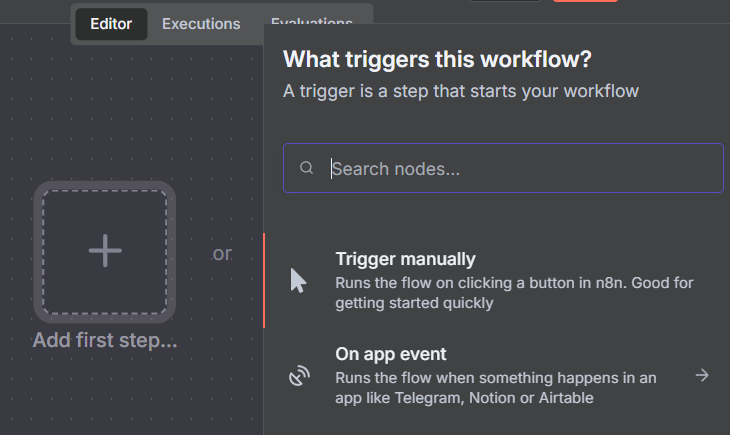
2. Add an AI Agent Node
Click + Add Node.
Search for “AI Agent”.
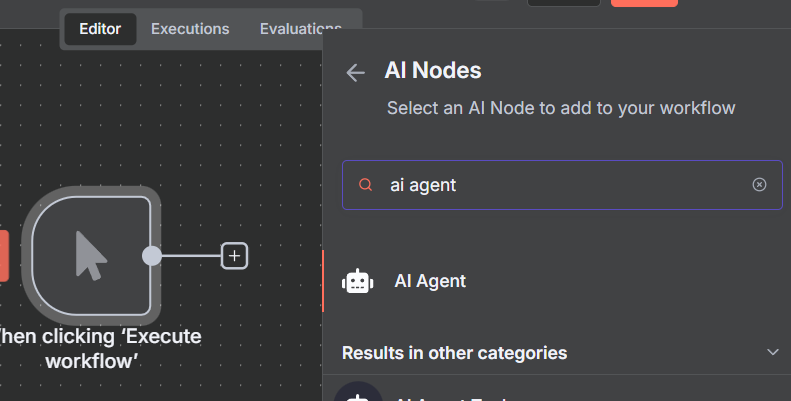
Select your LLM provider (OpenAI, Anthropic, etc.).
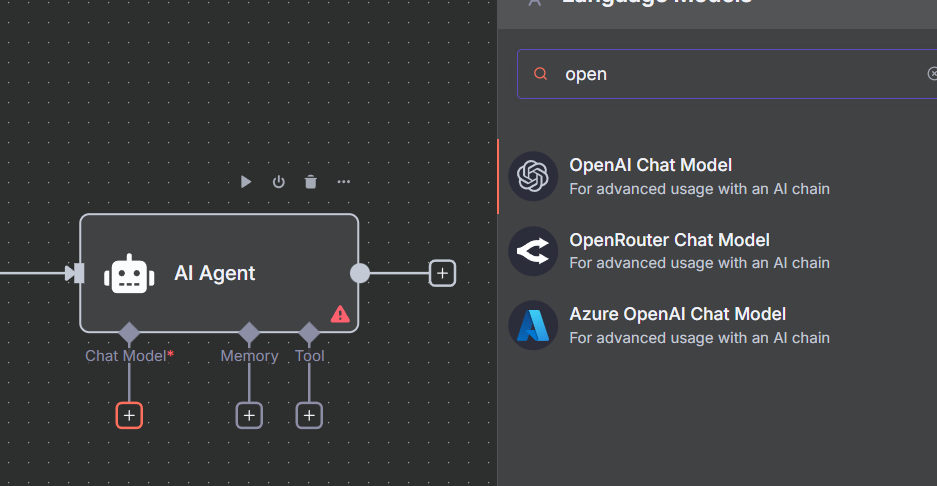
Add your model credentials.
3. Add the ATTOM MCP Server
Inside the AI Agent node:
Locate the Tools section and click the + (plus) sign.
Search for MCP and click MCP Client Tool.
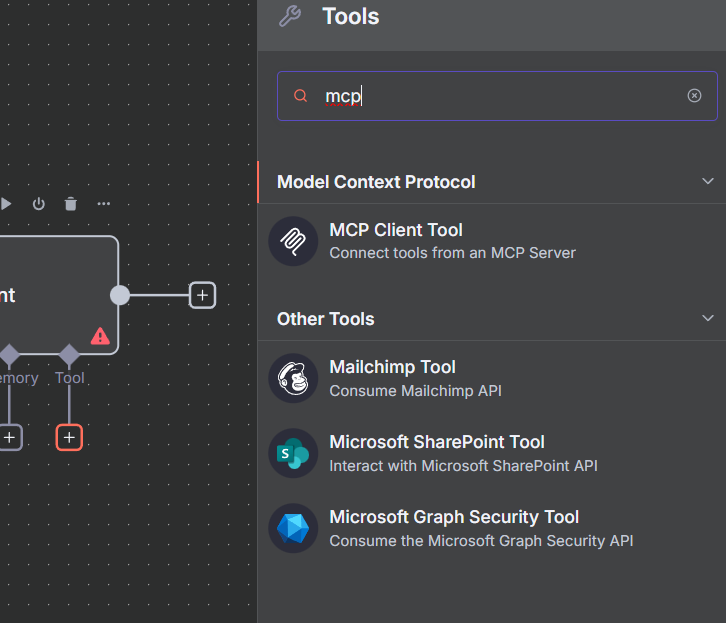
Enter into the MCP Client Tool configuration:
Endpoint:
https://mcp.attomdata.com/data/v1Server Transport: HTTP Streamable
Authentication: Header Auth
Select Create New Credential for Header Auth
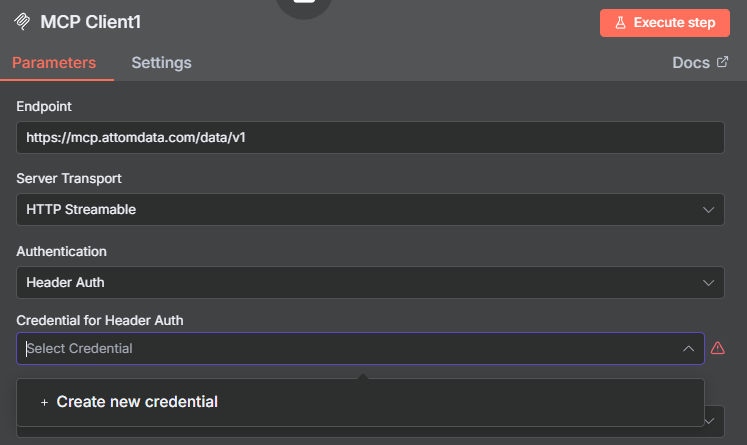
Enter into the New Credential settings:
Name:
apikeyValue:
YOUR_API_KEY_HERE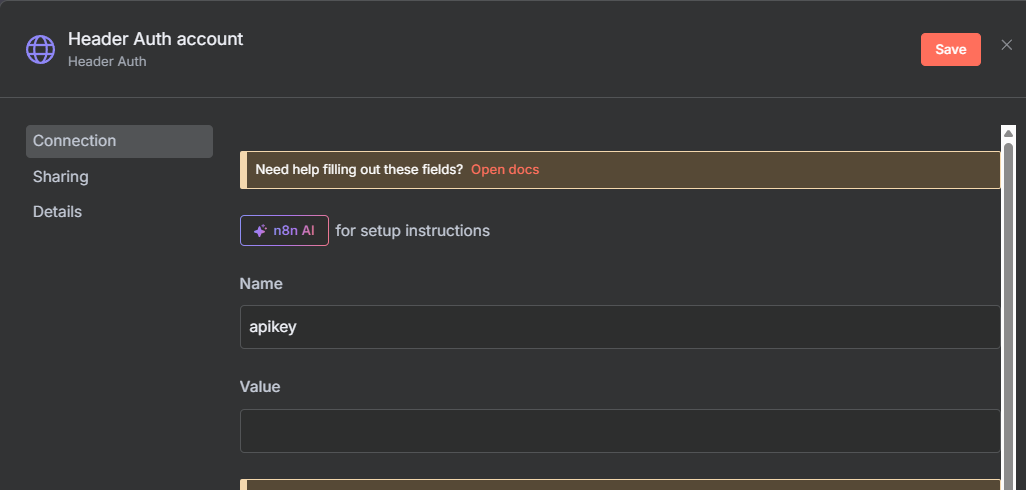
4. Select Tools
Enable MCP tools such as (or leave all tools enabled by default):
get_property_reportget_property_avmget_property_comparables
5. Test Your Workflow
Add input:
Fetch a full property report for 123 Main Street Los Angeles CA.
Run the workflow and review the output.